Help and manual
Every bimbadi feature at a glance, briefly explained and linked. Click a heading or a shortcut to jump right to the spot.
- Basics
- Board & QR codes
- Play along
- Phones & tablets
- Create your own
- For teachers
- Music theory
- Play-along codes
- Buying Boomwhackers
- Keyboard shortcuts
- Troubleshooting
- Feedback & wishes
The basic idea
Every note has its own color: C red, D orange, E yellow, F light green, G dark green, A purple, B pink, high C red again. When you see your color coming, you play, on Boomwhackers, glockenspiel, handbells, horns or a phone. The half steps (C♯, E♭, F♯, G♯, B♭) have blended colors.
Color chart
All colors including the half steps, to listen to and as a printable poster.
Switch note names
Wherever you see “Note names”: letter names as on the tubes (C D E … A B), German (… A H), Do Re Mi or Kodály syllables (do re mi). Your browser remembers your choice.
How bimbadi was made
A music teacher and an AI: who did what, the first month, and which free sounds, fonts and libraries are inside.
The “bim ba di” intro
The signature E – C – G before every song. On the home page it plays once per visit; press “Play with sound” to hear it.
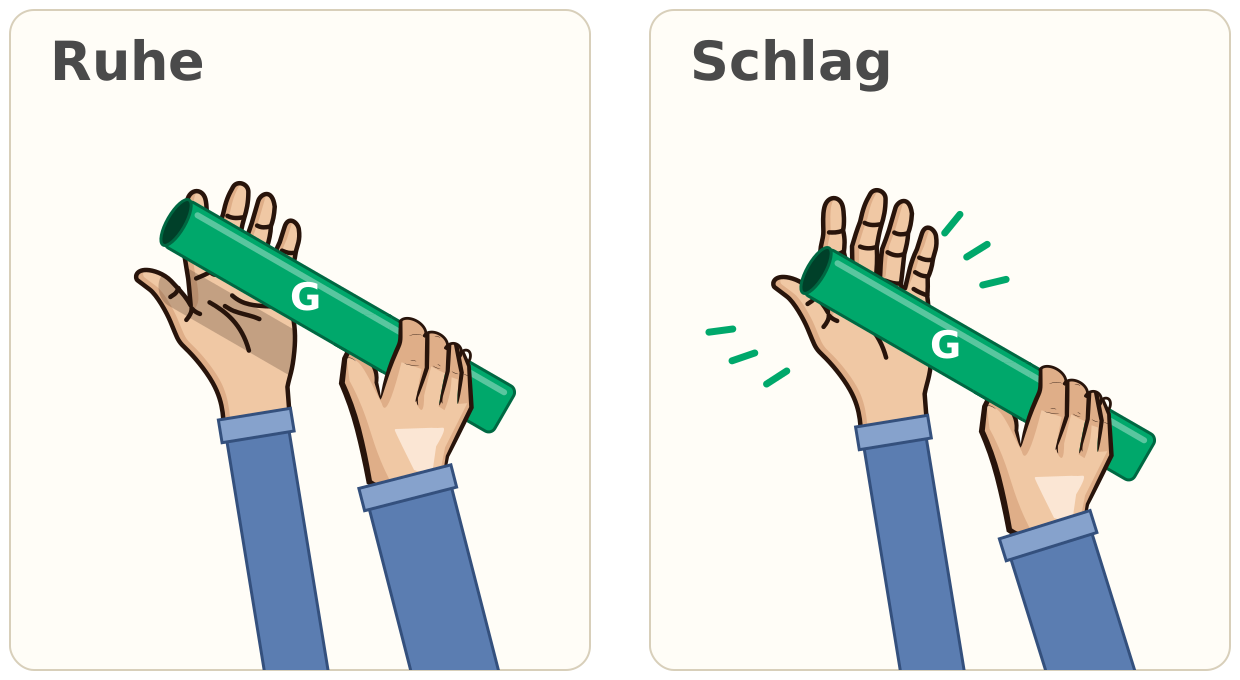
How to hold the tube
One hand holds the tube from above, in the lower third. The other hand stays open underneath, palm up.
- Rest: the tube hovers a hand’s width above the palm.
- Tap: when your color comes, tap the tube gently into your palm and lift it right back up. That way the note rings freely.
- The open hand stays where it is. Only the tube moves, straight down and back up.
On the smartboard and with QR codes
Everything on bimbadi is made for the smartboard and the projector: big, touch-friendly, no login. iPhones have no true full screen, so there the view fills the browser window.
“⛶ Show on the board”
This button sits at the top right of every tool: in all theory tools, on the color poster, with the sub plan codes, on the Play page, on the board, in calm mode and on the rhythm cards. The tool then fills the whole screen and grows as big as it can without scrolling, so even the back row can read it.
- The red ✕ at the top right or Esc closes the view.
- 📱 QR code next to it: your class opens the same tool on their tablets.
“📱 This page as a QR code”
At the bottom of every page. It shows a big QR code for the page, including all settings in the address (for example a pattern on the board). The code always leads to bimbadi.com.
- Copy link for your LMS (Google Classroom, Seesaw …), email or a messenger.
- Save as image downloads the code as a PNG to print, put on a worksheet or use next lesson.
QR wall with the tubes for a song
The start screen of every play-along lists the tubes you need, with a link for when you have no tubes: QR codes for phones and tablets. It opens the QR wall with the notes of that song. “⛶ Show on the board” shows the codes full screen, and “🖨 Print” prints them to cut out and lay on the tables.
Playing along in class
Songs & play-alongs
All songs with themes like holidays, Halloween, classical music and sea shanties, from Jingle Bells to the Nutcracker. Every song has its own page (click a title in the list, e.g. Frère Jacques): which tubes and half steps you need, key and time signature, a classroom idea, the title in other languages and similar songs.
Songs with English lyrics have their own English song page with US note names (B instead of H). The DE · EN button in the menu switches to the same page in German; some pages are only available in German so far.
3D show
The notes fly in, each in its color, and the lyrics scroll along. Before you start, choose the language, the music style and whether the melody plays along. The default is a calm piano accompaniment, like the piano in your classroom. You can also choose orchestra (a waltz in 3/4 time) with strings, pizzicato, music box, organ, as well as party and rock styles with drums, electric bass and electric piano or synth brass, all real instrument recordings. New: jazz, with a ride cymbal pattern, a walking bass in quarter notes and piano comping. In jazz pieces (Saints, bimbadi Blues) the eighth notes swing (long – short); a switch in the teacher settings makes them straight so you can compare. Pieces without lyrics show note names in the ticker, and the bimbadi Blues can show the Roman numerals I, IV, V instead. Kalinka and Korobeiniki get faster every time through. In Boléro and Mars the rhythm ostinato (snare drum or timpani) plays in the accompaniment, and Boléro gets louder and louder, just like Ravel wrote it. The sounds for a style only load when you choose it. Like on a keyboard, the accompaniment first plays a short intro (the last two measures) so everyone hears the key and tempo, and it ends on a ringing final chord. You can turn off the intro in the teacher settings.
- Calm display is the default: no confetti, no glitter, no flashing lights, and the notes arrive in a straight line. If you like it more colorful, uncheck it in the teacher settings. Your browser remembers the choice.
- Tempo 🐢–🐇 right above the start button.
- Teacher settings (“Für Lehrkräfte”; the player itself is still in German): tempo, volume, length (for songs with verses: from verse 1 only to verses 1–3, and the lyrics change along), key, octave with octave caps, note names, loop for practice, “bim ba di” before the count-in, chord tubes, round.
- Space bar = start/pause, ⛶ = full screen for the board.
- “🔗 Link with these settings” and “📱 QR code” in the teacher settings save the tempo, language, style, key, loop and more, so the show starts the same way next lesson or for a colleague.
- No tubes: under the list of tubes you need, “📱 QR codes for phones and tablets” opens the QR wall with the notes of the song.
Comic version (2D side-scroller)
A hand-drawn winter landscape scrolls by like a cartoon, the notes move left as colored bars on a 2D track, and the lyrics run along the bottom. Play when your bar reaches the yellow line. There are three scenes so far: O Christmas Tree (the tree decorates itself with every note), Jingle Bells (a sleigh ride) and Silent Night (sparks of light fly to the star).
- Unlock: the same code as for the song’s 3D show. After that, the song card has both buttons: 3D show and comic version.
- Settings: tempo, melody and accompaniment on or off, number of verses, calm mode (the landscape barely moves). Space bar = start/pause, ⛶ = full screen.
Audio previews
Hear and see how a song sounds: sparks bounce across the colored tubes, every bounce is a note, and together they play the melody. Each group of songs has its own world. The preview runs live in the browser and only starts when you tap the preview button and then start in the picture.
- Where: on the song cards in the song list, at the top of every song page, and all together, sorted by world, on the overview page.
- In class: a good opener before students play themselves: which color comes up most often? Where does the spark make a big jump? Then play along with notes and lyrics in the play-along.
- Only one preview plays at a time: opening a second one closes the first. “✕ Close” below the picture stops it.
Class Piece Popcorn
One complete song for your whole class (20 to 28 children) in six tube groups. Each group has one tube and one word – the words are the rhythm. You play along with a recording sung by a children’s choir in German (generated with AI), and the scrolling score moves in time with it.
- Choose a group: its row is highlighted and flashes before each entrance. Level 1 (roots only), 2 (rhythm and effects) or 3 (two tubes) all run on the same recording.
- Practice: jump straight to a section, tempo down to 75 %, “Add tubes” to listen first. Space bar = start/stop, keys 1–3 = level, ⛶ = full screen.
- Choreography: 24 drawn children in a circle around the pot show the movements in sync with the music. Teacher sheet: groups, form, lyrics, rehearsal steps and grid score to print.
Calm mode
One note at a time, big and calm: step by step (the teacher moves on) or automatic. Note names and lyrics can be hidden. For special education and for first steps. Works with all free songs: choose a song at the top, or start from the song list.
The Silent Town (Frère Jacques, 2D)
A story in woodcut style: the ravens have stolen every sound from the town of Grauwald. Verse 1 sounds in minor as a funeral march (as in Mahler’s First Symphony), and every note you play fills a bell and chases away a raven. At dawn the whole flock flies off, and verse 2 rings out in major.
- Settings: tempo, note names, tubes play a demo, accompaniment. A and B play with an octave cap in verse 1.
- Link and QR code keep all settings, and a button shows the code full screen for the class.
Times tables with Boomwhackers (math)
A workshop for the times tables up to 10 × 10 on the board. Each times table has its own tube: the 2s are C, the 5s are E, the 10s are G. Choose the tool at the top and the times table below it.
- Array: drag the round corner or tap a gray dot. “Count” goes through row by row, “Turnaround fact” rotates the array, and “Split” cuts it with scissors into a known fact and the rest (7 × 5 = 5 × 5 + 2 × 5).
- Number hop: the tube hops along the number line in steps of the times table and sounds at every jump. Tap the figure or press the space bar for one jump.
- Hundreds chart: tap several times tables and compare the patterns. “Find them yourself”: students tap the numbers of the times table on their own. “Hide numbers” leaves only the pattern.
- Count: the metronome counts, and the tube plays on every number in the times table. Whoever has that tube plays along; everyone else claps. Two times tables at once show where they meet. “Other numbers quiet” practices counting on silently.
- Groove: each measure has as many beats as the times table. Everyone pats their legs, and on the last beat they clap and say the number (3s: pat, pat, THREE – pat, pat, SIX …). That way students hear and feel the groups instead of counting single beats. The 10s groove is the 5s groove twice: a soft clap without a number on beat 5, a loud clap with the number on beat 10. The tube only plays on the number: as the times-table tube or as a scale (1 × n = C up to 10 × n = high E, each student holds one number). “Gaps” hides every other number, “Pro” hides all after the first: the class calls them out on the beat, then they appear. Under “More”: accompaniment, an audible demo, backwards and “Faster every round”.
- Quick facts: ten problems for the times table, mixed with turnaround facts, or only the key facts if you like.
- Free and with a code: the 2s are free. The bonus code from the eduki material (German edition) unlocks all times tables from 1 to 10. Number keys 1–9 and 0 choose the times table, and
?reihe=5&werkzeug=zaehlenopens a tool directly.
Rhythm games without instruments
For classes with no instruments and no devices: every body sound has a color (stomp red, patsch orange, clap yellow, snap green, tap pencils purple). The games run on a big stage with full screen for the smartboard and projector.
- Echo game: the board plays a measure, the class echoes it. Four levels, and “Listen only” for eyes closed.
- Color conductor: a big color shows which sound is next. It changes every 1, 2 or 4 measures, and on “Quiet” everyone is silent.
- Listening quiz: three rhythms on the board, one of them plays. Students show the number with their fingers. Tap a card to hear it for comparison.
- Body grooves: cards like the ostinatos, but with body sounds. You can mix them with the ostinatos: one group plays Boomwhackers, the other uses body percussion.
- “⛶ Show on the board”: shows only the chosen cards, big and stacked, with syllables and measures. You can switch the combination at the top.
Blow out the candles
After Happy Birthday, blow into the microphone. The microphone is only analyzed in the browser; nothing is recorded. Tapping works too.
Instruments, phones and tablets
Play instruments
Boomwhackers, xylophone, handbells and horns to tap, with all fingers at once. On a laptop, use the keys A to K. The “♯♭ Half steps” switch shows all thirteen notes from C to high C (keys W E T Z U for C♯, E♭, F♯, G♯, B♭). With “🎹 MIDI keyboard” (Chrome, Edge) a connected keyboard plays along, and the tube in the matching color bounces on the board.
Listening game “Which color was that?”
bimbadi plays a note (or two or three in a row), and the class guesses the color. Whoever has that tube stands up and plays it back; then a student taps the color, or “Reveal” shows it. Five levels from “C and G” to “all eight”, with C as a reference note first if you like. It uses the instrument chosen at the top.
QR wall: each student scans their color
No tubes? On the board, tap the notes your class needs. A QR code appears for each one. Students scan it with a phone or tablet and get just their own instrument. Tapping instead of scanning works too.
- Chords: choose a key, then chords or a whole progression (I – V – vi – IV, cadence …), one code per chord, optionally as a seventh chord with four tubes.
- The fewer codes, the bigger and easier to scan.
- “🖨 Print” prints just the codes, to cut out and put on the tables. “⛶ Show on the board” shows them full screen.
- Preselect with a link:
/en/play/?qr=c,e,gopens the wall with these notes.
One device, several notes
Up to four columns side by side on one device, one note each. “+ Note” adds a column, and the arrows ◀ ▶ change the note (half steps too). The screen stays on as long as the page is open.
Create your own
Interactive board
Drag or tap notes and ready-made chords into the measures: the melody on top (eighth notes), chords and accompaniment below (beats). Press play, and the tubes under the board show who’s up.
- Examples with melody and chords: Alle meine Entchen (German children’s song), Ode to Joy, Frère Jacques with a drone, a cadence, a waltz and a rock riff.
- Insert a chord progression: pop (I–V–vi–IV), ’50s, cadence, Pachelbel and 12-bar blues fill in the accompaniment, and the melody stays as it is.
- Chord tile labels can be switched: chord name or Roman numeral (I, ii … vii°). There’s also B° (B–D–F), the diminished chord on scale degree 7.
- Practice from measure … to … repeats only the chosen measures (the rest is dimmed) so you can work on tricky spots. 🥁 Click turns on the metronome, even during playback.
- Show chord tones: under each chord, the rows of its notes are lightly highlighted in the melody (under A minor: A, C and E). That shows which melody notes belong to the chord (chord tones) and which lie between them (passing tones). Task for your class: “Build a melody that plays a chord tone on every beat 1. Mark the notes that don’t belong to the chord.”
- Count-in with “bim ba di – 1 2 3 4”, big above the melody.
- ↶ Undo / ↷ Redo (also Ctrl+Z and Ctrl+Shift+Z) take back your last changes, for example when a chord tile overwrote some cells.
- Keyboard: arrow keys choose a cell, 1 to 7 set the chord of that scale degree (bottom) or the note (top), Delete clears it.
- “⛶ Show on the board” shows everything full screen and resizes it. In that view, “🎼 Board only” hides the palettes and building tools: for playing together you keep just the notes, the tubes and play, all bigger. “✏️ Build” brings the tools back.
- “Copy link” saves your pattern in the address.
- “📱 QR code” shows the pattern as a QR code that updates with every change. Students scan it with a tablet and keep building there. “Show large” fills the screen, and “Save as image” downloads the code as a PNG to print.
Rhythm ostinatos
Short accompaniment patterns with rhythm syllables (Ta, Ti-Ti, sh). Tap cards to have them play along, or pick a ready-made combination with a button.
- Switch rhythm syllables: “Ta · Ti-Ti” for elementary or “ta · ta-ki” after Richard Filz for older students (ta = quarter, ta-ki = eighths, ta-na-ki-te = sixteenths, ta-te = dotted). The syllable tells you where in the beat a note starts. The choice also applies to the echo game, the listening quiz and the Note Value Builder, and it’s saved in your browser.
For teachers
Teachers page
Which Boomwhacker sets to get, the chromatic set with sharps and flats, the color code, a sample lesson, sheet music and FAQ.
Sub plan
A ready-to-go, no-prep music lesson without sheet music: print it and leave it for the sub, with QR codes for everything they need.
Teaching articles
Advice from the classroom: what Boomwhackers are, which set a school needs, the first lesson step by step (also as a scrolling version for the board, with sound), games, reading color-coded music, music without instruments, and which skills students learn along the way.
Print the poster
The color chart as a landscape poster: “Print poster” on the color chart page.
Music theory for older students
Sixteen tools in a calm “studio” look, for Boomwhackers, keyboard or glockenspiel. Each one can be shown big with “⛶ Show on the board”. See all tools
🎹 Instrument: the instrument choice sits in the first box of every tool: piano (the default, a real recording), Boomwhacker, xylophone, handbells or keyboard. It applies to all theory pages at once and is saved in your browser. With piano, chords and drones play on piano too; only the bass lines in the blues and arranging tools stay on synthesizer.
Note Reading
From the color code to standard notation in four levels, with a quiz. “⛶ Full screen” shows the quiz full screen, and “📱 QR code for tablets” opens it with the same settings on students’ tablets.
Note Value Builder
Click notes and rests from whole to sixteenth into rhythms and see them in standard notation. If a value no longer fits in the measure, the builder shows how many beats are left. With examples, rhythm syllables or counting, playback with a pointer, and “Hide the notes” for rhythm dictation.
Scale Lab
Major, minor, all seven modes, pentatonic and blues on any starting note, with piano keys, tubes, notation and a quiz. Under “Note names”, movable-do solfège shows the syllables from the tonic, chromatic ones too (Dorian: do re me fa so la te). The modes exercise plays all modes from bright to dark, with a drone and a pause to sing back; the altered syllables are marked. As a challenge, you can also go degree by degree through all modes (do everywhere first, then re or ra …). With “🎹 MIDI keyboard” (Chrome, Edge) you can play the quiz answer on a real keyboard.
Circle of Fifths
All major and minor keys in a circle to tap: the key sounds, and next to it you see the key signature, relative key, dominant and subdominant, plus a memory trick. “▶ Cadence” plays I – IV – V – I and shows the spots on the circle, and “▶ Full circle” goes through all twelve keys in fifths. The box “Which tubes do we need?” shows the tubes for the key, which ones come from the chromatic set and which tube you swap when moving to a neighboring key. At the bottom, F♯ major and G♭ major: tap twice to switch the spelling. Plus a quiz on key signatures, keys and relatives. In the Scale Lab, the “◎ Circle of fifths” button takes you there.
Interval Trainer
Hear and name intervals, three levels, reference songs. Play two notes on a MIDI keyboard to see the name of the interval.
Chord Workshop
Roman numerals, inversions, seventh chords, cadences, listening quiz.
Rhythm Pro
Body percussion with sixteenths, syncopation, triplets, 5/4, 7/8 and Boléro.
Form
Build song form, rondo and theme and variations, and recognize them in a listening puzzle.
Blues & Groove
12-bar blues with a band, blues scale, riffs, call and response.
Music History Timeline
Composers in time order, features of each era, themes in notation and links to the pieces to play along with.
Composition Workshop
Invent and develop motifs and save them as MIDI for MuseScore.
Largo (Dvořák)
The English horn theme from the New World Symphony in C major with a drone: notation, playback and a tube plan.
Instruments
The orchestra seen from above: tap any section and that instrument plays a short melody of its own. Next to it you’ll find the family, how the sound is made, the range and a fun fact. “▶ all …” has the whole family play a cadence together. The range chart shows every instrument as a bar above the piano keys. A second view shows the band (vocals, electric guitar, electric bass, drums, keyboard, synthesizer) with “▶ All together”. Plus a listening quiz: name the instrument or the family. The orchestra sounds are real recordings (VSCO 2, CC0).
Scoring a Film Scene
A hand-drawn film scene (a figure with a lantern, a wolf, a cabin) runs with four different scores: underscoring, Mickey-Mousing, paraphrase and counterpoint, or with no music. The timeline shows the events; tap it to see a still. Plus a listening puzzle on the techniques and the leitmotif builder: change major/minor, tempo, register, volume, instrument and accompaniment, or pick a scene from the story. All motifs and scores are original compositions.
Listening to Sonata Form
Mozart’s Eine kleine Nachtmusik, first movement: the colored form bar shows exposition, development, recapitulation and coda, and each section plays a short excerpt (melody and accompaniment can be switched separately). Plus the first and second themes side by side, the path through the keys, a listening puzzle and the openings of all four movements. The listening map runs along with a recording of your choice: start the clock and tap “Next section” at each new section. You can print it as a listening worksheet.
Fugue for Boomwhackers
Bach’s Art of Fugue (Contrapunctus I): subject and answer in four voices, notation with colored note heads, playback with a choice of voices, and a tube plan.
Live Arranging
Pop chord progressions for band and tube groups, with a play plan.
Play-along codes
Many play-alongs come with the color-coded sheet music. When a song is locked, the player shows where to get its code:
- 📄 Sheet music with code on TPT: The song has its own product in the bimbadi store on Teachers Pay Teachers. The code is inside the download (sheet music, lesson plan and play-along access).
- 📖 Book with code on Amazon: The 12 songs of the book “Winter & Holiday Songs for Boomwhackers” unlock with the code on the last page of the book.
- 🛒 bimbadi on TPT: For other songs, the code will come with the sheet music on TPT soon.
- Enter the code: scan the QR code from the download, or type the code on the songs page. Dashes, spaces and upper or lower case do not matter.
Where can you buy Boomwhackers?
bimbadi doesn’t use affiliate links and doesn’t earn anything from your purchase. But you have to get the tubes somewhere, so here are the official distributors of the Boomwhackers® brand, as the companies themselves list them. We don’t list prices.
- USA: Rhythm Band Instruments, owner of the brand and worldwide supplier of Boomwhackers® (boomwhackers.com).
- Germany and Austria: Best Acoustics (Reinhardt GmbH), official distributor since 2010. The company supplies music stores, so ask for the tubes there.
- United Kingdom and Ireland: Frederick Hyde Music Distribution, exclusive distributor since February 2026.
- All other countries: Ask at your local music store or school supplier.
Other brands make tuned percussion tubes too. If you buy those, check that the colors match our color chart. Which set to get and how many tubes a class needs is covered in the article Buying Boomwhackers for Your School.
Keyboard shortcuts
| Key | What it does | Where |
|---|---|---|
| Space bar | Start / pause or stop | 3D show, board, rhythm games, theory tools |
| A to K | Play notes C to high C | Home page, Play, note reading quiz |
| W E T Z U | Half steps C♯, E♭, F♯, G♯, B♭ | Play with “♯♭ Half steps” |
| 1 to 4 | Play column 1 to 4 | One device, several notes |
| Ctrl+Z / Ctrl+Shift+Z | Undo / redo | Board |
| ← → ↑ ↓, 1 to 7, Delete | Choose a cell, set a chord or note, clear a cell | Board (with the board selected) |
| Esc | Close the QR code, board view, full screen or QR wall | everywhere |
| → / Enter | next note | Calm mode |
Troubleshooting
I can’t hear anything.
Tap anywhere on the page once: browsers only play sound after a tap or click. Check the volume too. On iPhone and iPad, the silent switch also mutes websites.
How do I leave full screen?
With the red ✕ at the top right, the exit button or the Esc key.
Students can’t scan the QR code.
Open the camera app and hold it steady on the code until a link appears. Older Android phones need Google Lens or a scanner app. The fewer codes on the board, the bigger they are. If all else fails, save the code as an image and print it.
The Wi-Fi is down. Does it still work?
Yes, for everything you’ve already opened on this device: the browser keeps pages you visited and still shows them offline. Tip: open the pages for your lesson once beforehand while you’re online. Phones that scan the QR codes do need their own internet, though. Bonus songs always need internet because the server unlocks them.
A new feature is missing for me.
Reload the page once. On a phone: pull the page down, or close the browser tab and open it again.
We have an idea, a song request or found a mistake.
Send it through the feedback & wishes form. Every question is optional, and you only need an email address if you’d like a reply.
Do we need an account or an app?
No. bimbadi runs in the browser with no login, no ads and no tracking. More in the privacy policy (in German).
Is bimbadi on social media?
Yes, as bimbadimusic on YouTube, Pinterest, Facebook, Instagram and TikTok. The icons are at the bottom of every page. They’re plain links: the networks learn nothing until you click one.